
Students eligible for text-to-speech accommodations can easily listen to texts during the exam using the Vix system.
 How to activate the Read-Aloud feature?
To activate the text-to-speech feature, simply highlight the text you want to hear (by clicking and dragging your left mouse button). Once highlighted, the reading toolbar will immediately appear on the screen:
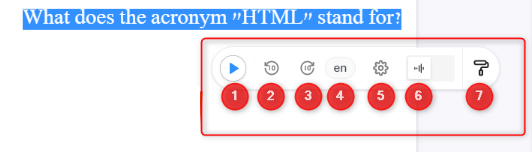
 Toolbar Buttons Overview:
- 1Play / Pause: Click to start reading the highlighted text.
- 2Jump Back: Rewind the reading by 10 seconds.
- 3Jump Forward: Advance the reading by 10 seconds.
- 4Language Selection: Set the language in which the text will be read.
- 5Settings: Control the reading speed and voice type.
- 6Timeline: Open a graphical timeline of the reading progress.
- 7Highlight Text (Marker): Highlight the selected text with color.
 Audio and Speed Settings
Clicking the Settings button (number 5) opens a menu allowing you to choose a custom Playback speed, as well as the voice type (male/female and various styles) used for reading each language.
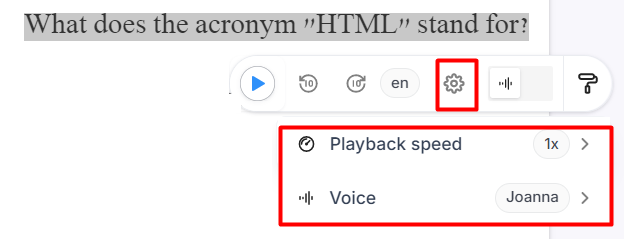
Please note: The available voices vary depending on the selected language. For example, selecting English will open a wider range of voice options, as shown in the example below:
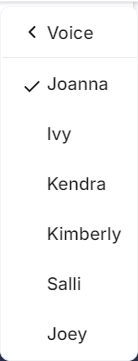
 Timeline Control
Clicking the timeline icon (number 6) will open the reading progress bar. This view provides full playback control:
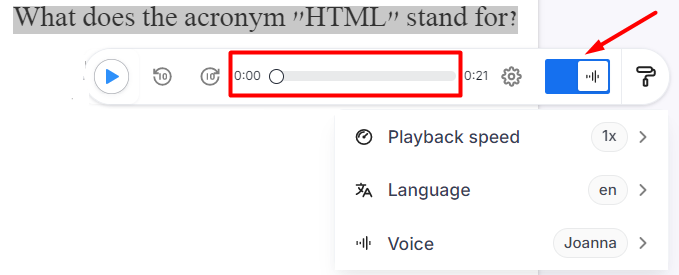
 Stop and Resume: Pause the reading and resume it from the exact same point.
- Skip Sections: Click on the timeline to jump to a specific timestamp during the reading.
- Time Tracking: View the total reading time of the highlighted section and the elapsed time.
