
Downloading the App
To get started, please download the installation file using the link below:
➤ Click here to download the installation file
Watch: Step-by-step installation guide (less than 3 min)
Detailed Instructions
- Click the link above to open the download page.
- On the screen that appears, select your operating system (Windows or Mac).
- Click the arrow to start the download.

⚠️ Note: It is recommended not to save the installer file on your desktop to avoid confusion with the app shortcut that will be created there later.
Installing the App
Windows installation
- Locate the downloaded file named "VIX-Installer" (usually in your 'Downloads' folder) and click on it.
Important Permissions:
- Installing a new program requires administrator privileges.
- If the Windows "User Account Control" screen appears, asking "Do you want to allow this program to make changes to this computer?" click OK or Yes.
- If your firewall or antivirus requests authorization, please grant it.
- If you encounter a message containing the word "SEB," refer to the relevant instructions on the troubleshooting page.
Mac installation
For detailed guidelines on installing the app on a Mac, please refer to the instructions provided here.
Changing the Interface Language
You can easily change the interface language by selecting your preferred option from the language button at the top of the window.

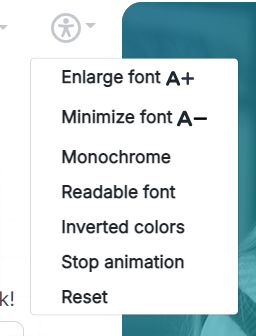
Accessibility
We are committed to making our app as accessible as possible for all users.
Completion of Installation
After the installation is complete, the software will automatically open, and you will see the "Exam Login" screen.
If the software does not open automatically, or if you need to access it again later, simply locate the "Vix" icon on your desktop and double-click it.

⚠️ Troubleshooting: Can't find the icon?
If the "Vix" icon does not appear on your desktop, follow these steps:
- Open your file explorer.
- Navigate to
C:\Program Files\TET - Look for a file named Vix.
To ensure easy access, we recommend creating a shortcut to this file on your desktop (Right-click > Send to > Desktop).